How do I add an email address as a contact?
From your Client Area, you can add email addresses as contacts.
The contacts you add will receive system-generated notifications and will be associated with your contracted services. \
It is very important to add as contacts the email addresses you use to communicate with technical support or the billing department, which will speed up identification of your plans and services and facilitate handling your inquiries.
To add an email address as a contact, follow these steps:
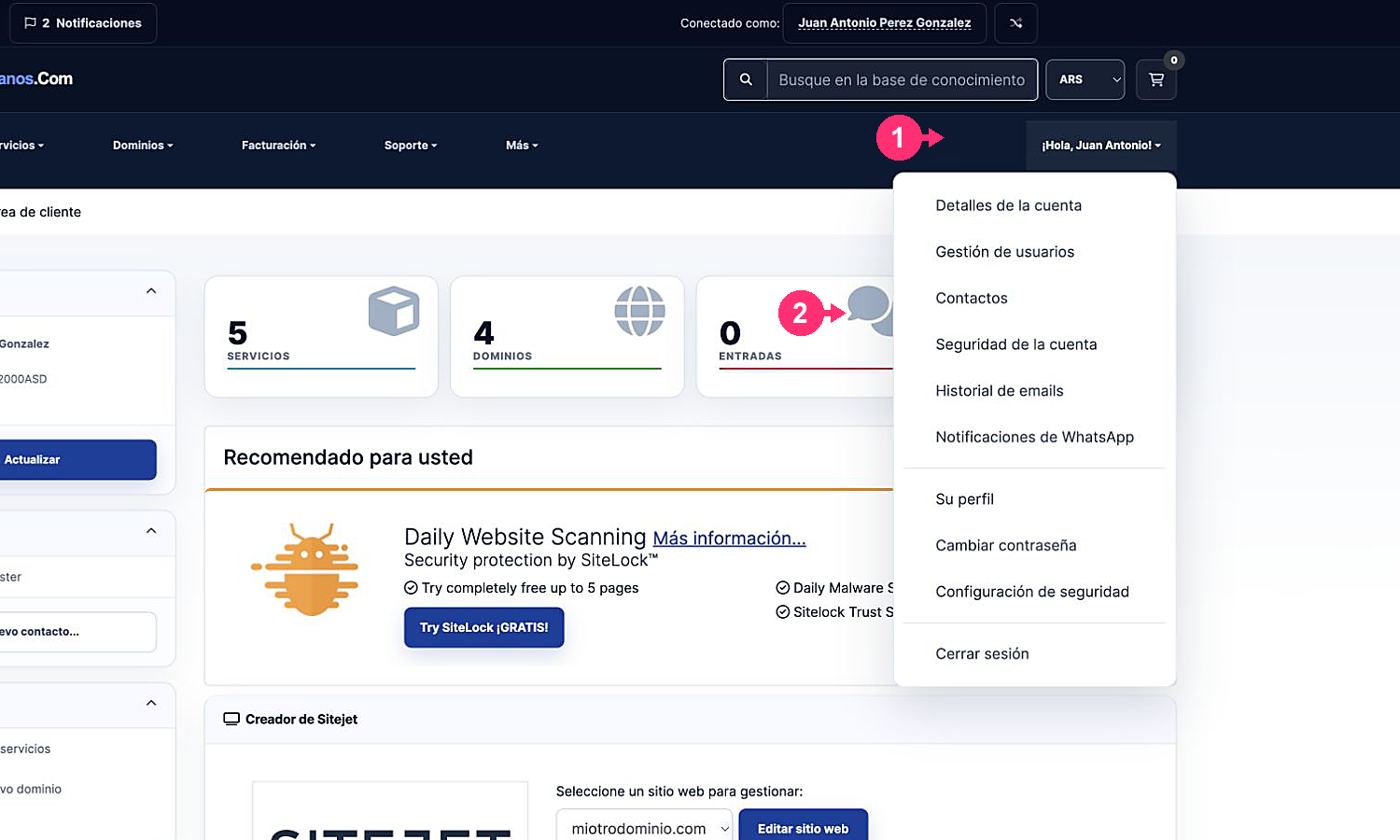
- Log in to your Client Area.
If you don’t remember how to log in, follow this link: How to access the Client Area - Open the Hello, [your name]! menu that you’ll see at the top right.
- Select Contacts.
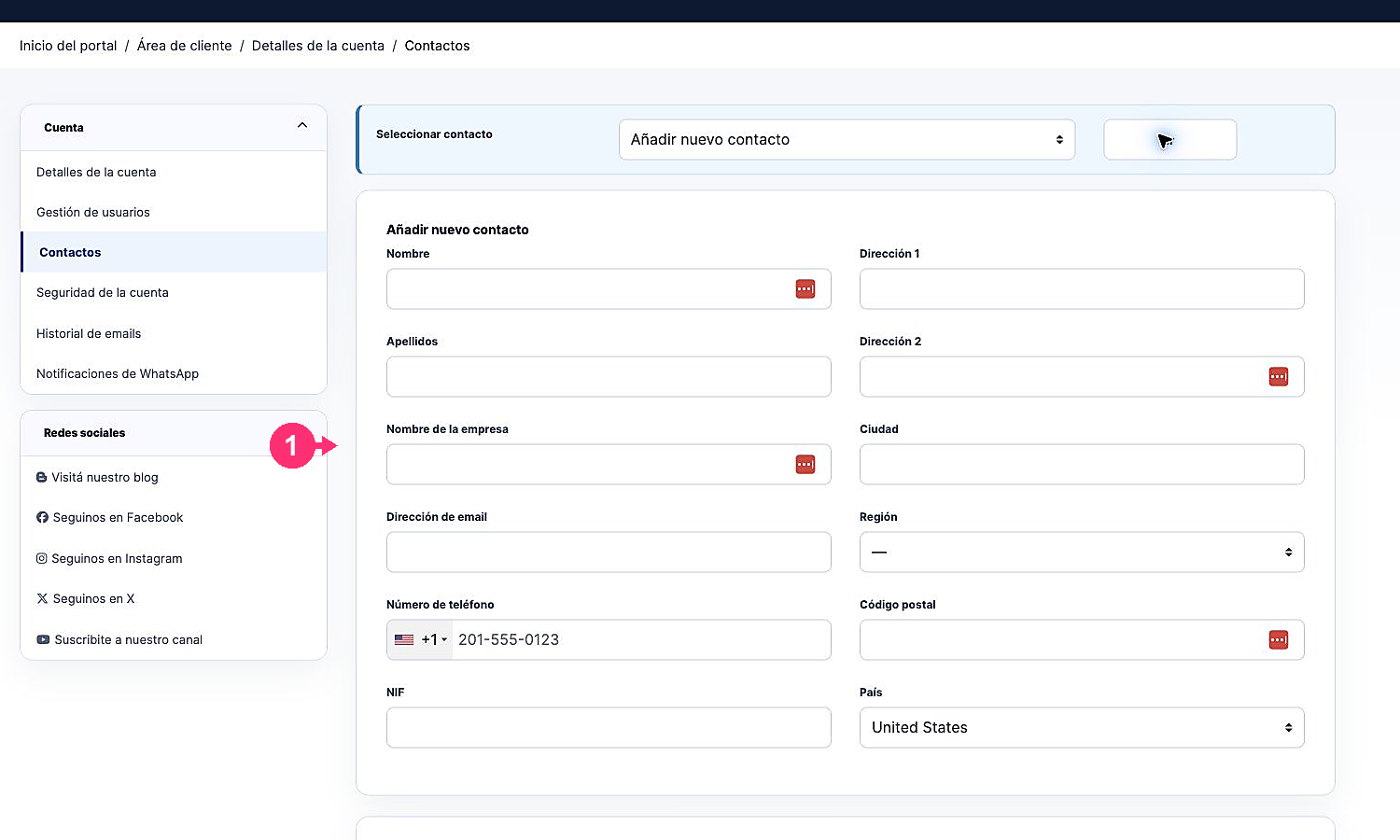
- On the contacts screen, select Add new contact.
- Fill in the contact details in the form.
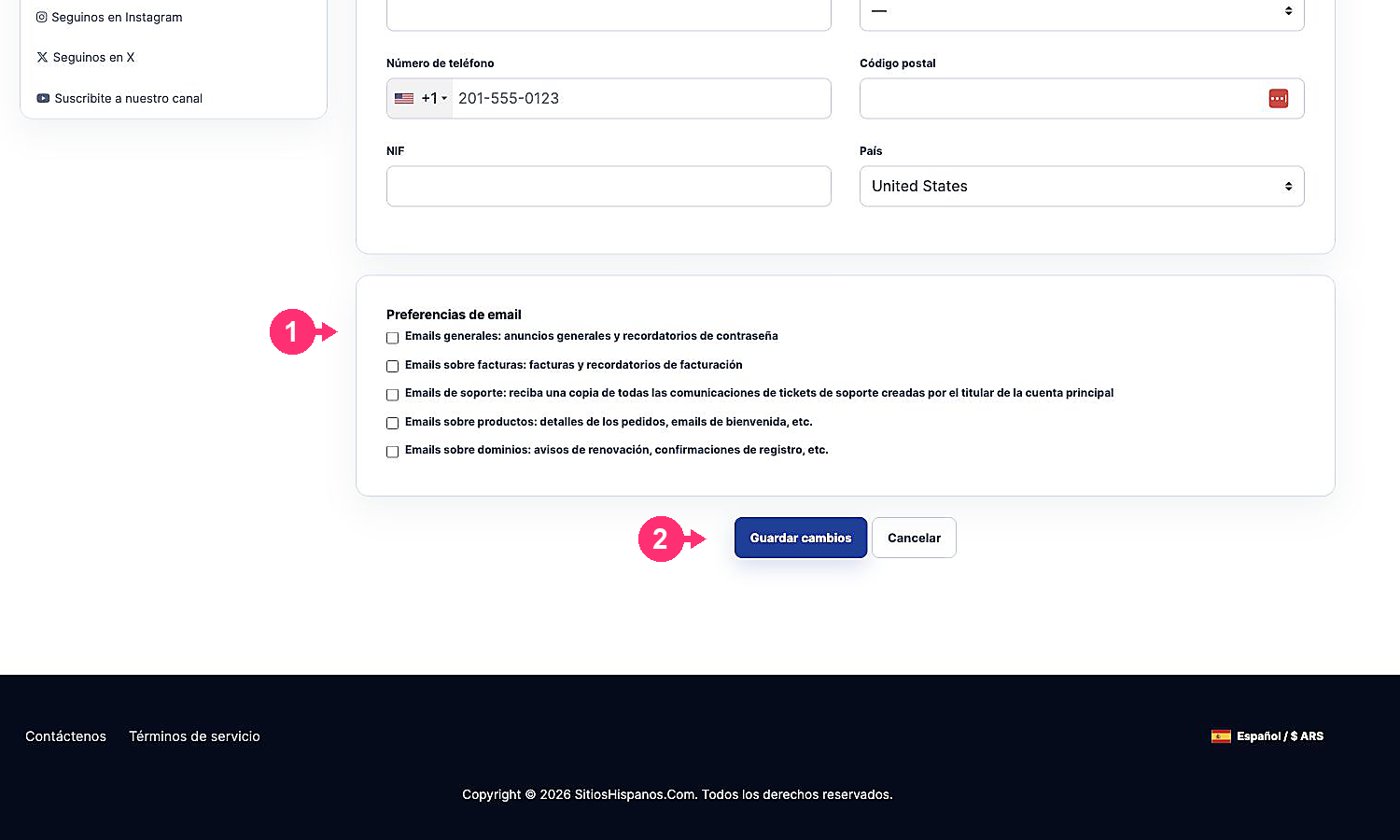
- Below the form, configure which types of emails the contact will receive: general, billing, support, products, or domains.
- Once everything is configured, press Save changes.