

How do I add contacts to my lists?
There are several ways to get to the option to add contacts, it’s always the same button Add contacts:
When creating a new list, the screen will take you to the contacts area, where you will find the Add Contacts button.
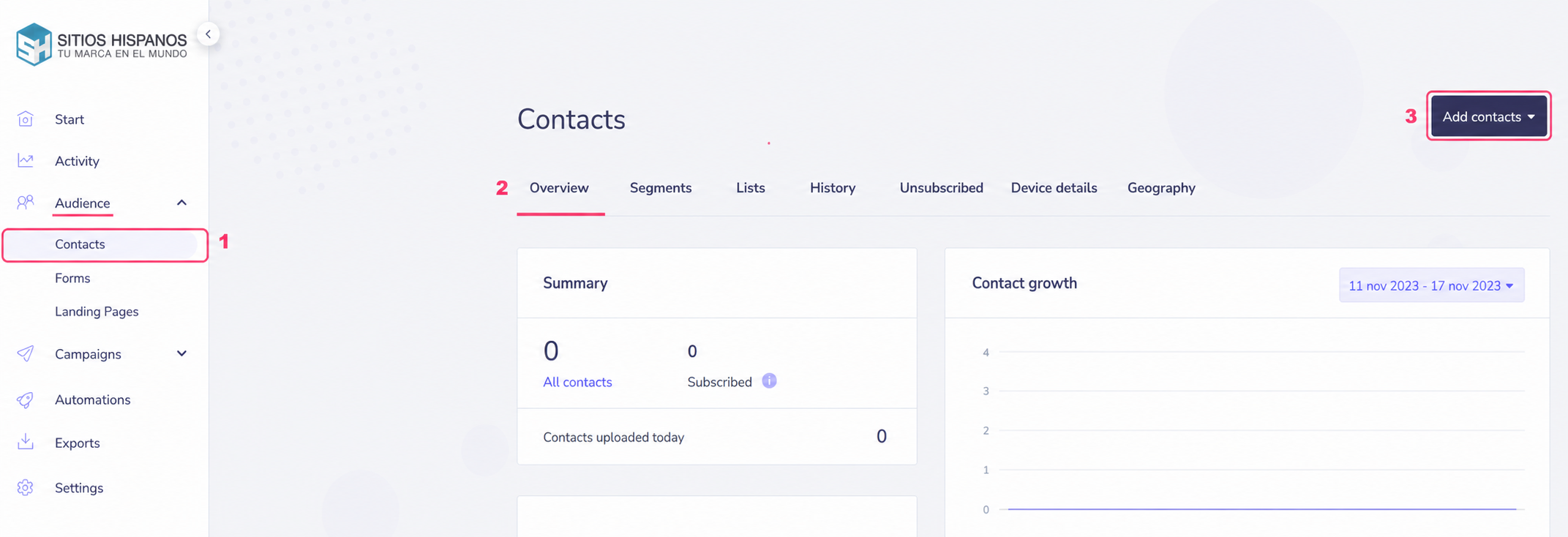
You can also find this button by going to Audience=>Contacts. In General information you will see the Add contacts button (top right).
If you have multiple lists created and want to add contacts to a specific one, you can do it this way:
- Go to Audience=>Contacts, in the left menu.
- Then go to Lists, in the central options bar.
- You will see your created contact lists. Click on the one you want to add contacts to.
.png)
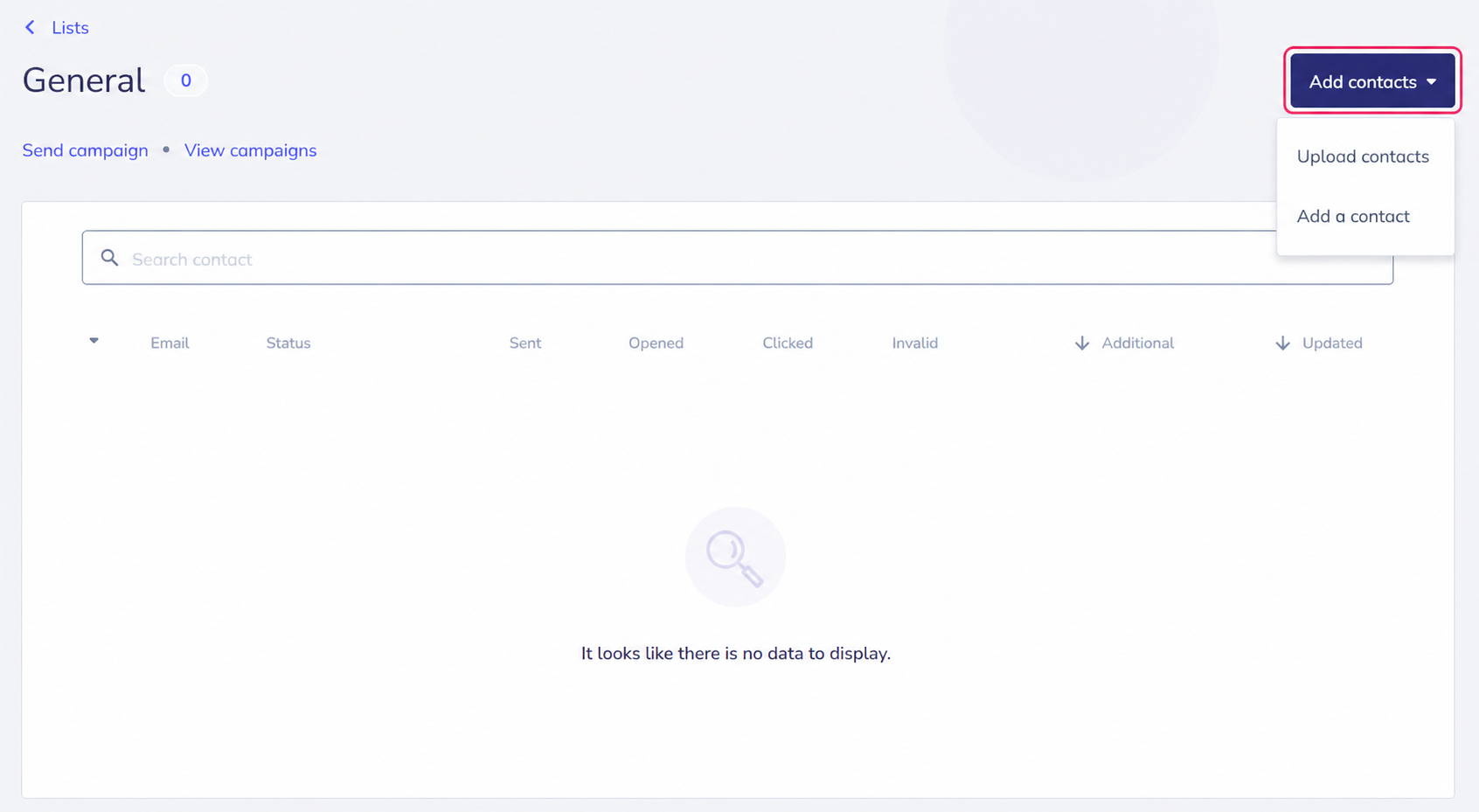
- You will arrive at the screen where you will see the list’s contacts and the Add contacts button.
The Add contacts button will show you the two ways to add contacts to your lists:
- Upload contacts: you will be able to add multiple contacts from a contact database or file.
- Add a contact: you will be able to add individual contacts.
If you want to add multiple contacts from an external file follow this step-by-step guide:
how-to-add-multiple-contacts-from-files-or-contact-databases.md
If you want to add individual contacts follow this other step-by-step guide: